
Jump to:
No content available.
Welcome!
This manual helps you to optimise the usage of the conference telephone in combination with the PBX. Please use this manual at initial operation.

Yealink CP925
We hope you enjoy using your conference telephone.
Subject to alterations
Version 2 / 07.2023 (en)
| Type | Icon/Character | Description |
| NOTE
CAUTION
WARNING |  | NOTE: Information that is useful but not critical to the reader.
CAUTION: Tells the reader to proceed with caution.
WARNING: Stronger than CAUTION; means "don't do this" or that this step could be irreversible, e.g., result in permanent data loss. |
| TIP |
| Useful tips that provide additional information. |
| Procedure | 1. 2. 3. | Procedures are numbered steps to perform an action, where the order of the steps is relevant. |
| Result of procedure/action | ⇒ | Indicates the result of an action//procedure. |
| Lists | • • | Used for listings and items where the order of steps is irrelevant. |

No content available.
Using the Yealink CP925 conference telephones with your PBX merely requires a sound broadband connection.
All telephones you receive are preconfigured and connected to the telephone system.
No content available.
Yealink CP925
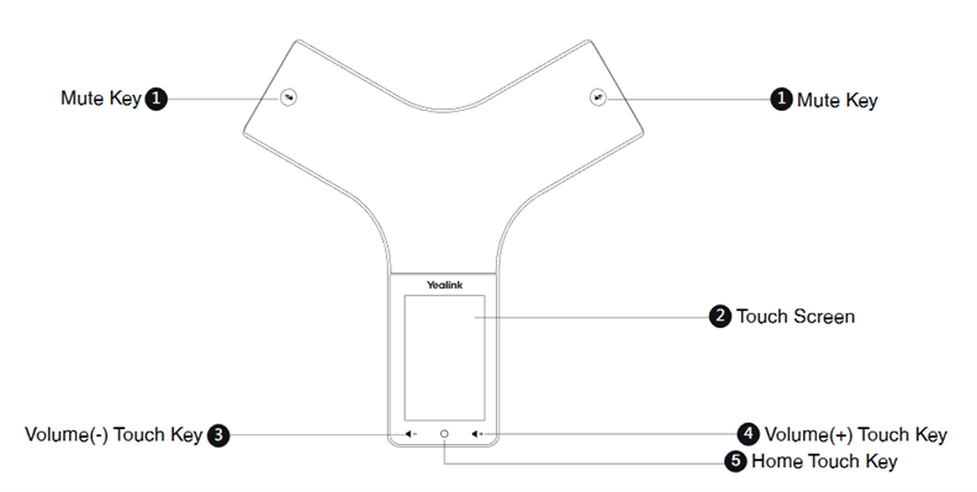
| Pos. | Description | Feature |
| 1 | Mute Key |
|
| 2 | Touch Screen | Shows information about calls, soft keys, time, date, and other relevant data. |
| 3 | Volume(-) Touch Key | Lowers the volume of the speaker, ringer, or media. |
| 4 | Volume(+) Touch Key | Increases the volume of the speaker, ringer, or media. |
| 5 | Home Touch Key | Returns to the idle screen. |
| 6 | USB Type-C Port |
|
| 7 | Security Slot | Allows you to connect a universal security cable to your phone so you can lock down your phone. The phone will not be removed after locked. |
| Ref. | Key |
| Solid red | The phone is initializing. The phone is muted. |
| Flashing red | The phone is ringing. |
| Solid green | The phone is placing a call. There is an active call on the phone. |
| Off | The phone is powered off. The phone is idle. |
Placing a call from the dialer
Tab the phone icon:

Enter a number:

For internal calls (extension) it is sufficient to enter the extension number.
When dialling an external call number, first prefix it with "0", then enter the external call number.
As a final step select the send icon: 
Putting a call on hold
Select Hold during a call. The phone will beep softly every 30 seconds to remind you that you still have a call on hold.
Placing an additional call
While in an active call you have two possibilities to place an additional call
Tap the select icon "... "> New call. The active call is placed on hold.
Select Hold to place the original call on hold. Tap the select icon "..." > New call.
Either way as the final step enter a call number or select a contact and select the send icon
Attended transfer
During an active call press the TRAN key or Select Options> (Call)Transfer.
Now, dial the telephone number to forward to (internal or external telephone number). The other party is now on “hold” and hears the telephone system’s hold music.
Confirm the number entered by pressing the Send softkey. A connection is now established to the number you are transferring to.
Semi-attended: When you hear the ringback tone, press the TRAN key or Transfer to finish a semi-attended transfer. Attended: After the contact answers the call, press the TRAN key or Transfer to finish an attended transfer (consultative transfer).
You have completed the transfer and your line is “free” again.
Unattanded (blind) Transfer
Select Options > (Call)Transfer, or press the TRAN key during a call.
Enter the number you want to transfer the call to or select Directory > Directory/History to choose a contact.
Press TRAN or Transfer to complete the transfer.
Call forward
If you want to directly forward a call without answering it first:
When the phone is ringing, tap
 .
.Enter the number or choose the contact you want to forward the incoming call to.
Select Forward.
 .
.Three-way conference
Place a call to the first party.
When the first party answers the call, select Options > Conference.The active call is placed on hold.
Dial the second party’s number.
When the second party answers the call, select Conf. to invite two parties to join the conference.
Inviting multiple members to a conference
Place a call to the first party.
After the first party answers the call, select Invite.
Do one of the following:
Place a call to the 2nd party, and again select Invite. Repeat this step until you added all intended parties.
Select "Call multiple members? Click here >>".Enter a number or contact and then select "Add Members" and repeat.
Finally, to call all intended parties at the same time tap the call icon: 
Please note the maximum number of 5 participants in a dynamic conference initiatlised with your CP925. Use your PBX to plan larger conferences as described in the user manual of your telephone system.
Tap "More" > DND when the phone is idle.
The DND icon appears in the status bar:


Go to More > Basic > Wi-Fi.
Tap Known Network(s) and select .
Enter the desired SSID in the SSID field.
Select one of the following from the Security Mode field:
Select None.
Select WEP, WPA/WPA2 PSK from the Security Mode field and enter the desired password.
Select 802.1x EAP from the Security Mode field. Than select the desired EAP method and enter the desired values in the corresponding fields.
As a final step select Save.
Where can you get help?
You can use various sources for help concerning your issues. Please use them in the order suggested here:
On voip-centrex.dfn.de you will find an overview of all documentation, downloads and portals as well as help pages and further information. | |||||||||
The home page of the service site contains various links to manuals, brief instructions, software downloads and templates. Please read these manuals thoroughly. They help you get the most out of your telephone system. | |||||||||
Support hotline for existing customers | Incident report for DFN customers:
| ||||||||
| Important information for the Service Desk
| ||||||||
Support hotline for test customers | As a test customer, the detailed information is available under https://voip-centrex.dfn.de/index.php?id=26621. |