
Jump to:
No content available.
Welcome!
This manual helps you to optimize the usage of the DECT telephone in combination with the PBX. Please use this manual at initial operation.
We hope you enjoy using your DECT telephone.
Subject to change
Version 1 / 01.2016 (en)
| Type | Icon/Character | Description |
| NOTE
CAUTION
WARNING |  | NOTE: Information that is useful but not critical to the reader.
CAUTION: Tells the reader to proceed with caution.
WARNING: Stronger than CAUTION; means "don't do this" or that this step could be irreversible, e.g., result in permanent data loss. |
| TIP |
| Useful tips that provide additional information. |
| Procedure | 1. 2. 3. | Procedures are numbered steps to perform an action, where the order of the steps is relevant. |
| Result of procedure/action | ⇒ | Indicates the result of an action//procedure. |
| Lists | • • | Used for listings and items where the order of steps is irrelevant. |

No content available.
In order to use this IP telephone with your telephone system you will need a sound broadband connection.
In order to ensure a successful operation of the devices, site serving and installation via a certified Panasonic partner is a mandatory pre-condition, otherwise NFON cannot provide any technical support.
The DECT base is not yet added as a device in the administration portal. The master-CS (base) has to be added manually before putting into service. Please note all necessary steps on the following pages.
No content available.
Overview
Before you begin using your new Panasonic DECT system, we would like to provide you with a brief overview of the steps required for installation.
Add DECT base (KX-UDS124) on the administration portal.
Add DECT mobile handsets (KX-UDT1x1) on the administration portal.
Add a phone extension for the DECT mobile handsets on the administration portal and assign the respective enddevice.
Register mobile handsets to base.
The following pages provide a detailed description of the individual steps.
No content available.
Overview Multicell KX-UDS124 installation
The Panasonic Multicell KX-UDS124 enables a multitude of connection possibilities.
You can configure only one Air Sync Group via autoprovisioning.
The maximum number of mobil devices is 255.
Due to the seamless handover between the DECTs, you are able to walk around in your company and stay connected.
You can gather detailled information on the official webpage of Panasonic, you can find this information on:
www.panasonic.net
Choose Business, Business solutions
Select SIP Phone
then you can download the documents in the Support, Download area.
)
The installation of master and slaves and the site survey has to be done.
)
To ensure a failure-free operation, we recommend, that the istallation is done by your system partner.
Installation DECT Base KX-UDS124 Master
Installation of the KX-UDS124 DECT-Base with your telephone system:
| No. | Description | Picture |
| 1. | Please select Add new Device on the administration portal under Elements/Devices. |  |
| 2. | Please select the DECT KX-UDS124 under Panasonic. |  |
| 3. | A new window appears, here you can select your firmware version. |  |
| 4. | Enter the MAC address. You can find the MAC address either on the delivery box or on the back side of the device (see example). |  |
| 5. | Save your entries. | |
| 6. | Connect the DECT base to your LAN network. The base station will now be synchronised. This can take a while and depends of the firmware download time. |
LED indications:
Slow flashing = 60 x per minute
Moderate flashing = 120 x per minute
You can connect up to 255 mobile devices (Panasonic KX-UDT1x1) to the base station KX-UDS124. The maximum number of parallel calls is 4 per base station.
| Status | Description |
| OFF | Off/SIP-CS Software downloading |
| Green ON | Stand-by (no active calls) |
| Slow green flashing | Talk (active calls) / S-PS data transfe |
| Moderate green flashing | Busy, all voice channels are occupied |
| Red ON | Fault |
| Slow red flshing | Out of Service/Starting up |
| Moderate red flashing | Starting up |
| Amber ON | Stand-by, unsatble synchronisation |
| Slow amber flashing | Talk (unstable synchronisation) |
| Moderate amber flashing | Busy (unstable synchronisation) |
Maintain the distances listed below between equipment in order to prevent noise, interference or thedisconnection of a conversation. (The distance may vary depending on the environment.)
More then 2 meter SIP-CS and office equipment such as a computer, telex, fax machine, etc.
More then 5 meter SIP-CS and other radio device
To install a Panasonic KX-UDS124 in slave mode, you do not have to change the settings in the administration portal. You need an access to the master KX-UDS124 over the web interface.
Follow these steps:
| No. | Description | Picture |
| 1. | One master KX-UDS124 must be already installed, as described in section 2.2.1. | |
| 2. | You need to know the IP address of the master, you can get it either: with your connected handset, Menu>Setting Handset>Other Option>MasterCSAddress or with an IP network scanner (e.g. netscan) | |
| 3. | Open your web browser, e.g. Firefox, ... | |
| 4. | enter the IP address. |  |
| 5. | A new window appears, here you have to enter a userID and a password. This information is provided by your system partner. It is NOT the standard Panasonic userID and password. |  |
| 6. | Now you connect your slave UDS124 to your network. Please wait untill the LED is flashing RED. | |
| 7. | The web interface displays the version information. |  |
| 8. | Now you select: (1.) System (2.) CS Management, then the CS Management window appears (3.) Select Start CS Registration |  |
| 9. | First of all, there appears a message, if you want to proceed, because if you continue ALL running connections wil be disconnected! Push OK, to continue. |  |
| 10. | All search over all channels is done and all slaves found are displayed. (1.) you can see the MAC-address. (2.) Trying continues to blink, it might be that you want to connect more than one slave. If you should see your slave and you want to stop the search, you stop the search by pushing (3.) Stop CS Registration. |  |
| 11. | Now you have installed a master/slave system and your slave LED ilights GREEN. |
The KX-UDT-1X1 mobile handsets are registered to your phone system by the next steps:
| No. | Description | Picture |
| 1. | Log into the administration portal and select Add new device under Elements/Devices. |  |
| 2. | Please select the UDSHandset under the category Panasonic. |  |
| 3. | A new window appears, please insert your IPEI number. |  |
| 4. | You can find the IPEI in the settings of your handset by selecting: 1. Navigation 3. Select System Option 4. Select H/S Information 5. IPEI: your IPEI number for this handset | |
| 5. | Save your entries. | |
 .
. .
.To assign a handset to a user (e.g. John Doe), you follow the next steps:
| No. | Description | Picture |
| 1. | On the administration portal on the menu item Targets select "Add New Target". For more details, please consult the administration portal manual. | |
| 2. | A new window opens, please enter the name, extension and/or trunk. Click on Add new Device and select your device from the list: device is [MAC address base] - [IPEI handset] |  |
| 3. | For all other settings, please consult the administration portal manual. | |
| 4. | Save your entries. |
The base is automatically registered. During the final step, you must register the mobile handset to the base. This is done using the menu of your Panasonic mobile handset.
You will see "Regsister Unit" on your display. Press OK: Registration
Now push (and hold) for approx. 5 seconds the OK button.
The handset is registered automatically, this can take a while if a new firmware needs to be installed.
After registration the display shows the next information: extension: name.
No content available.
Telephone overview
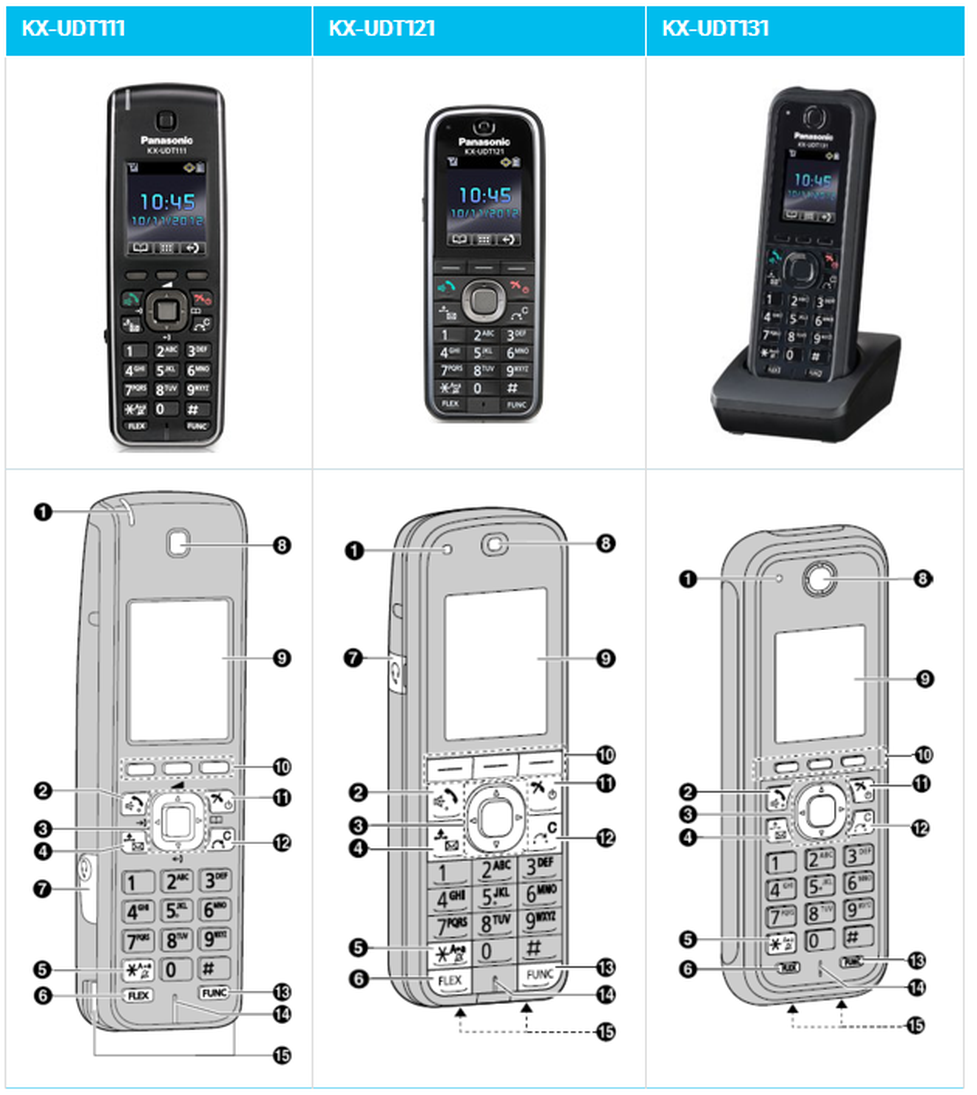
none
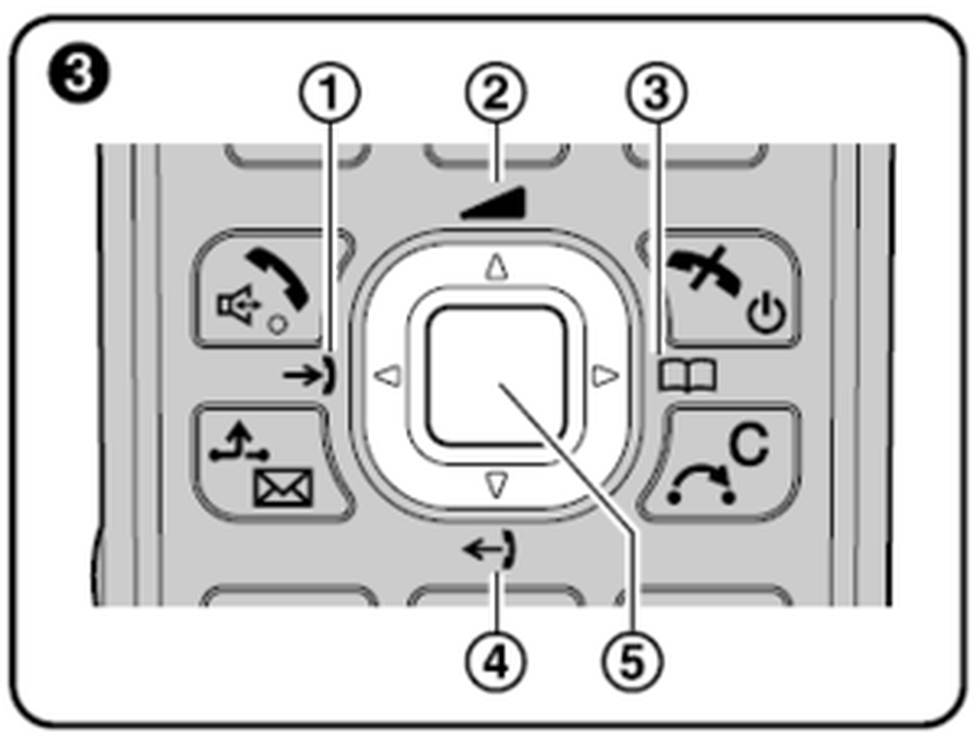
The symbols are only visible on the KX-UDT111!
Placing calls
- Press  .
.
- Dial the telephone number.
- Press  .
.
Placing a call using the incoming call log
- Press  or
or  .
.
- Select the desired telephone number  or
or  , then press .
Usage of the phone book
- Press  or press
  .
.
- Select the desired entry and press .
Placing a call using the outgoing call log
If a call is received from a phone number stored in the phonebook, the number and name of the caller will be displayed in the call log.- While in standby mode, press or .- Press or to select an outgoing call record, and then press .
End a call
- To end a call press  .
.
Usage of the speaker/phone key (handsfree)
- Toggle between Receiver mode and Hands-free mode during a conversation, press . During a conversation using a headset, Hands-free mode does not work.
Adjusting the Receiver/Speaker/Headset Volume
- During a conversation, press or to adjust the volume (Level 1–6).
Incoming calls
Receiving calls
If you receive a call, the ringer indicator illuminates.
- To answer an incoming call, press .
- To end the call press or return the mobile handset to the charger.
Missed calls
Missed calls are indicated in the display of the mobile telephone (“Missed Calls”) and the ringer indicator flashes.
- To access the missed calls list, press the button.
- Press or to select an incoming call record and then press .
To delete the entry or to save it to the phonebook press the  button and select your decision.
Hold
You can put a call on hold by holding the call at your extension.
To hold the current call
- Press  during an external call, then press . The active call is now placed on “Hold”.
To retrieve a call on hold at your extension
- Press  .
.
- Press the dial key corresponding to the slowly flashing green DN key, or press  oder
oder  , to select a slowly flashing green DN key, and then press
  .
.
Call waiting/Toggle calls
Call Waiting
During a conversation, if a second call arrives, you will hear a call waiting tone. You can answer the second call by disconnecting or holding the current call.
To disconnect the current call and then talk to the new party
- Press  , while hearing the call waiting tone.
- Press  .
.
Toggle calls
To hold the current call and then talk to the new party
- Press , while hearing the call waiting tone.
- Press  .
.
- Press the dial key corresponding to the flashing green DN key, or press  or ,
or ,
to select a flashing green DN key, and then press  .
.
Conference calls
Three-party conference
During a conversation, you can add an additional party to your call and establish a conference call.
Making a Conference Call
1. Press  , and then press 5 ("Conference").
2. Dial the party you want to add to the conversation, and then press  .
.
3. After the called party answers, press  , and then press 5 ("Conference").
Discharge a participant from a conference call
During a conference, you can discharge other participants from the conference call. You can use this feature only when have started the conference yourself.
1. Press the key  during the conference call.
2. Press then the key .
3. Press the dial key or the key or , and then press  to select the DN key (flexible key) that corresponds to the party you want to disconnect.
4. Press  .
.
5. Press  .
.
6. Press the dial key, or press or , nd then press , to select the DN key (flexible key) that
corresponds to the remaining party.
Ending a Conference Cal
To go on-hook and end the conference call, press  .
.
Attended call transfer
You can transfer a call to another phone extension (internal or external).
1. During an active call, press  .
.
2. Dial the party to whom you would like to transfer the call, then press .
3. Wait for the other party to answer, then announce the call.
4. Press  .
.
Unattended call transfer
- During an active call, press  .
.
- Dial the party to whom you would like to transfer the call without making an enquiry.
- Press .
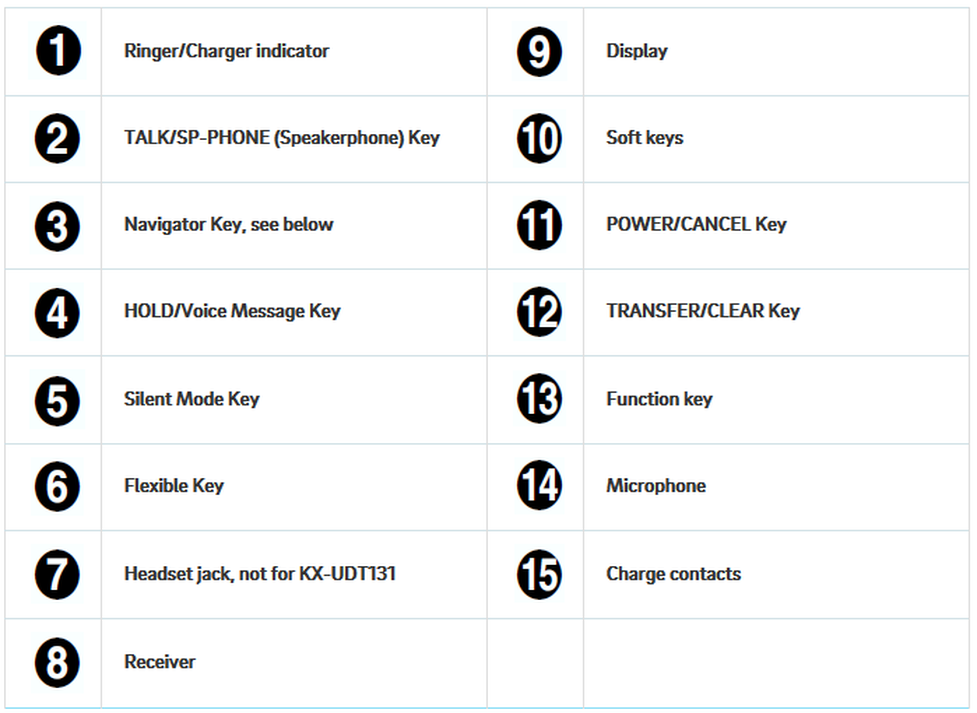
 | Ringer/Charger indicator |  | Display |
 | TALK/SP-PHONE (Speakerphone) Key |  | Soft keys |
 | Navigator Key, see below |  | POWER/CANCEL Key |
 | HOLD/Voice Message Key |  | TRANSFER/CLEAR Key |
 | Silent Mode Key |  | Function key |
 | Flexible Key |  | Microphone |
 | Headset jack, not for KX-UDT131 |  | Charge contacts |
 | Receiver |
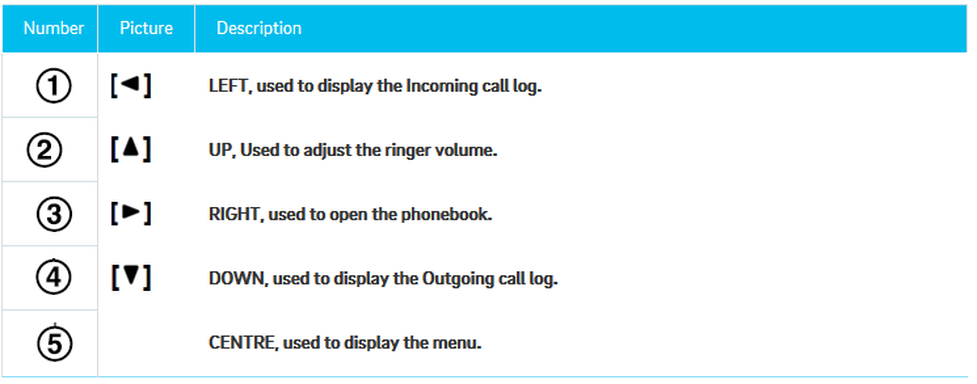
| Number | Picture | Description |
 |  | LEFT, used to display the Incoming call log. |
 | | UP, Used to adjust the ringer volume. |
 | | RIGHT, used to open the phonebook. |
 |  | DOWN, used to display the Outgoing call log. |
 | CENTRE, used to display the menu. |
1.2. Placing calls
Press .
- Dial the telephone number.
- Press .
Placing a call using the incoming call log
- Press or .
- Select the desired telephone number or , then press
Usage of the phone book
- Press or press
- Select the desired telephone number or , then press
Placing a call using the outgoing call log
If a call is received from a phone number stored in the phonebook, the number and name of the caller will be displayed in the call log.- While in standby mode, press or .- Press or to select an outgoing call record, and then press
End a call
- To end a call press.
Usage of the speaker/phone key (handsfree)
- Toggle between Receiver mode and Hands-free mode during a conversation, press .During a conversation using a headset, Hands-free mode does not work..
Adjusting the Receiver/Speaker/Headset Volume
- During a conversation, press or to adjust the volume (Level 1–6).
Receiving calls
If you receive a call, the ringer indicator illuminates.
- To answer an incoming call, press .
- To end the call press or return the mobile handset to the charger.
1.4. Missed calls
Missed calls are indicated in the display of the mobile telephone (“Missed Calls”) and the ringer indicator flashes.
- To access the missed calls list, press the button.
- Press or to select an incoming call record and then press .
To delete the entry or to save it to the phonebook press the button and select your decision.
1.5. Hold
You can put a call on hold by holding the call at your extension.
To hold the current call
- Press  during an external call, then press . The active call is now placed on “Hold”.
To retrieve a call on hold at your extension
- Press .
- Press the dial key corresponding to the slowly flashing green DN key, or press oder , to select a slowly flashing green DN key, and then press .
Jump to:
Call Waiting
Toggle calls
Call Waiting
During a conversation, if a second call arrives, you will hear a call waiting tone. You can answer the second call by disconnecting or holding the current call.
To disconnect the current call and then talk to the new party
- Press , while hearing the call waiting tone.
- Press .
.
Toggle calls
To hold the current call and then talk to the new party
- Press , while hearing the call waiting tone.
- Press .
- Press the dial key corresponding to the flashing green DN key, or press or
or
, to select a flashing green DN key, and then press .
Three-party conference
During a conversation, you can add an additional party to your call and establish a conference call.
Making a Conference Call
1. Press , and then press 5 ("Conference").
2.Dial the party you want to add to the conversation, and then press .
3.After the called party answers, press , and then press 5 ("Conference").
Discharge a participant from a conference call
During a conference, you can discharge other participants from the conference call. You can use this feature only when have started the conference yourself.
1. Press the key during the conference call.
2. Press then the key .
3. Press the dial key or the key or , and then press to select the DN key (flexible key) that corresponds to the party you want to disconnect.
4. Press .
5. Press .
6. Press the dial key, or press or , nd then press , to select the DN key (flexible key) that
corresponds to the remaining party.
Ending a Conference Call
To go on-hook and end the conference call, pressu .
You can transfer a call to another phone extension (internal or external).
1. During an active call, press .
.
2. Dial the party to whom you would like to transfer the call, then press .
3. Wait for the other party to answer, then announce the call.
4. Press .
1.9. Unattended call transfer
- During an active call, press .
- Dial the party to whom you would like to transfer the call without making an enquiry.
- Press .
No content available.
Initial setup
When accessing the voice menu of your voicemail system for the first time, you should also set up your personal answering system.
Please refer to the voice mail leaflet for detailed information.
1. Dial *793 on your Panasonic mobile handset or press button  to access the voice menu of your voice mail system.
2. Then select “0 Mailbox Options” to set up your voice mail.
3. Now press:
„1“, to record a message in the event you are unavailable.
„2“, to record a message in the event if the hone is busy.
„3“, to record your name.
„4“, to record a temporary announcement.
4. Now record your message and press “#” to end the recording.
Accessing voicemail
- Dial *793 on your handset or
- Press or
- Dial the extension numnber, which is assigned to your mailbox (see administration portal).
Where can you get help?
You can use various sources for help concerning your issues. Please use them in the order suggested here:
On voip-centrex.dfn.de you will find an overview of all documentation, downloads and portals as well as help pages and further information. | |||||||||
The home page of the service site contains various links to manuals, brief instructions, software downloads and templates. Please read these manuals thoroughly. They help you get the most out of your telephone system. | |||||||||
Support hotline for existing customers | Incident report for DFN customers:
| ||||||||
| Important information for the Service Desk
| ||||||||
Support hotline for test customers | As a test customer, the detailed information is available under https://voip-centrex.dfn.de/index.php?id=26621. |